Make a Broken-Monitor YouTube End Screen for Free
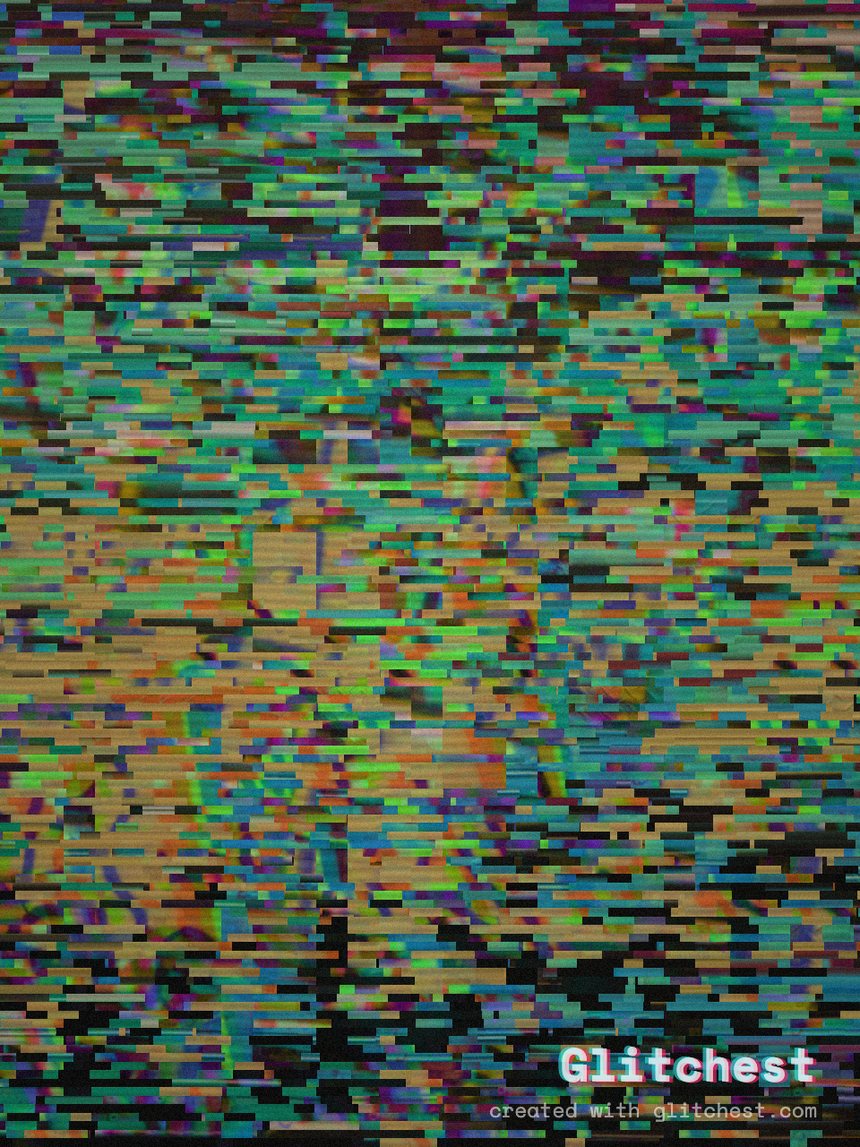
A broken-monitor aesthetic gives your YouTube end screen an intense, tech-distorted vibe that locks viewer attention right as your video concludes. Creating a digital glitch frame with scanline fractures, dead signal artifacts, and misplaced pixel grids instantly upgrades your channel branding.
Why Use a Broken-Monitor Aesthetic for End Screens?
In the final 5 to 20 seconds of a video, you compete for viewer action—whether that is encouraging them to click a next video card, subscribe, or check external links. Standard static end screens are easy to ignore. A broken-monitor video end screen uses unexpected visual noise, signal tearing, and horizontal displacement to capture curiosity without obscuring your clickable elements.
This style is particularly popular among gaming channels, tech reviewers, synthwave artists, narrative lore creators, and ARG producers. When paired with cohesive branding like a glitchy YouTube channel banner, your visual identity stays sharp and memorable across your entire channel.
Key Visual Elements of a Broken Screen Effect
To recreate a convincing shattered LCD or dead cathode-ray monitor frame, you need a balance of realistic hardware distress and controlled animation:
- Horizontal Fractures and Scanline Artifacts: Broken LCD screens shift pixel rows left or right, creating jagged horizontal splits across your frame.
- Signal Instability: Occasional drops in visual sync cause sudden frame drops or flashes of dead channel noise.
- Targeted Masking: Keep designated areas—like your YouTube video element placeholders and subscribe button circle—clean or selectively distorted so viewers can interact with them.
- Rhythmic Timing: Constant noise can turn chaotic. Applying brief, high-impact glitch bursts keeps the screen dynamic while remaining readable.
Step-by-Step: How to Make a Broken-Monitor YouTube End Screen
You can create a complete, motion-animated broken-monitor end screen directly inside your browser without installing heavy software or paying for subscriptions.
- Import Your Base End Screen Asset: Open the editor in your web browser. Drag and drop your background artwork, template graphic, or video loop into the workspace. Make sure your asset is formatted to 1920x1080 for standard YouTube end card placement.
- Select a Glitch Preset: Navigate to the preset library and choose Broken Monitor or Signal Jam. This instantly establishes the core screen tear, scanline raster, and digital distortion needed for a display hardware defect look.
- Apply Rectangle or Ellipse Masking: If your end screen template has designated boxes for your upcoming video cards or subscribe avatar, add a mask. Select a rectangle mask for video thumbnails or an ellipse mask for subscribe circles. Reverse or isolate the mask so distortion only affects the frame borders while keeping click areas readable.
- Arrange Timeline Effect Boxes: Build motion by adding effect boxes across timeline lanes. Drag a main Broken Monitor box across the full duration for subtle underlying noise. To add sudden screen spikes, drop short effect boxes on upper lanes at specific timestamps. Adjust each box's fade-in and fade-out parameters to blend intense glitch hits into smooth visual recovery.
- Fine-Tune Display Artifacts: Dial in horizontal line displacement, RGB color split, and scanline frequency in the inspector panel. Turn the Time Machine dial to introduce subtle analog film texture or aged raster glow, softening raw digital pixels into an authentic hardware monitor screen.
- Export Clean MP4 Video or PNG Stills: Once your animation timing looks crisp, export your video as an MP4 file. Glitchest renders locally via WebCodecs for quick processing with no server upload required. If you only need a stationary template overlay, export a high-resolution PNG using the frame capture feature.
Pro Tips for High-Converting Glitch End Screens
Balance Glitch Intensity with Playback Clarity
While broken monitor glitches look visually striking, YouTube clickable elements require visible contrast. Use short effect boxes for hard glitch hits right when the end screen appears, then fade into a lighter background signal jam so viewers can clearly read thumbnail titles.
Layer Multiple Effect Boxes on Timeline Lanes
Instead of relying on a single static filter, stack effect boxes across separate lanes. Combine a light VHS sweep on Lane 1 with short, localized Dead Channel boxes on Lane 2. Layering staggered boxes creates unpredictable, organic screen glitches rather than repetitive loops.
Sync Screen Fractures to Audio Cues
Match your visual hard hits with your end screen audio track. Place short glitch effect boxes precisely on beat drops, tape-stop sounds, or synthetic static bursts to reinforce the illusion of a failing physical display panel.
Try it now — add this look to your own clip, free and in your browser.
Open the editor →FAQ
What dimensions should a YouTube end screen video be?
YouTube end screens use a standard 16:9 aspect ratio, ideally exported at 1920x1080 resolution. The standard duration for end screens ranges between 5 to 20 seconds.
Can I mask specific parts of my end screen to keep text readable?
Yes, Glitchest allows rectangle and ellipse masking so you can apply broken monitor distortion to specific background regions while keeping subscribe buttons or video cards legible.
Do I need to render videos on a server or download heavy software?
No, Glitchest processes all video rendering directly in your browser using WebCodecs, so you can edit and export fast MP4 files locally without uploading files or creating an account.