How to Glitch a Photo Online — Free Glitch Image Editor
If you are wondering whether there is an online version of glitch art software, Glitchest runs directly in your browser without requiring any downloads or account registration. Load any image, adjust parameters with preset chips or 0-100 knobs, and save a glitched still in seconds. Because all processing executes locally on your device, your source files never upload to a server.
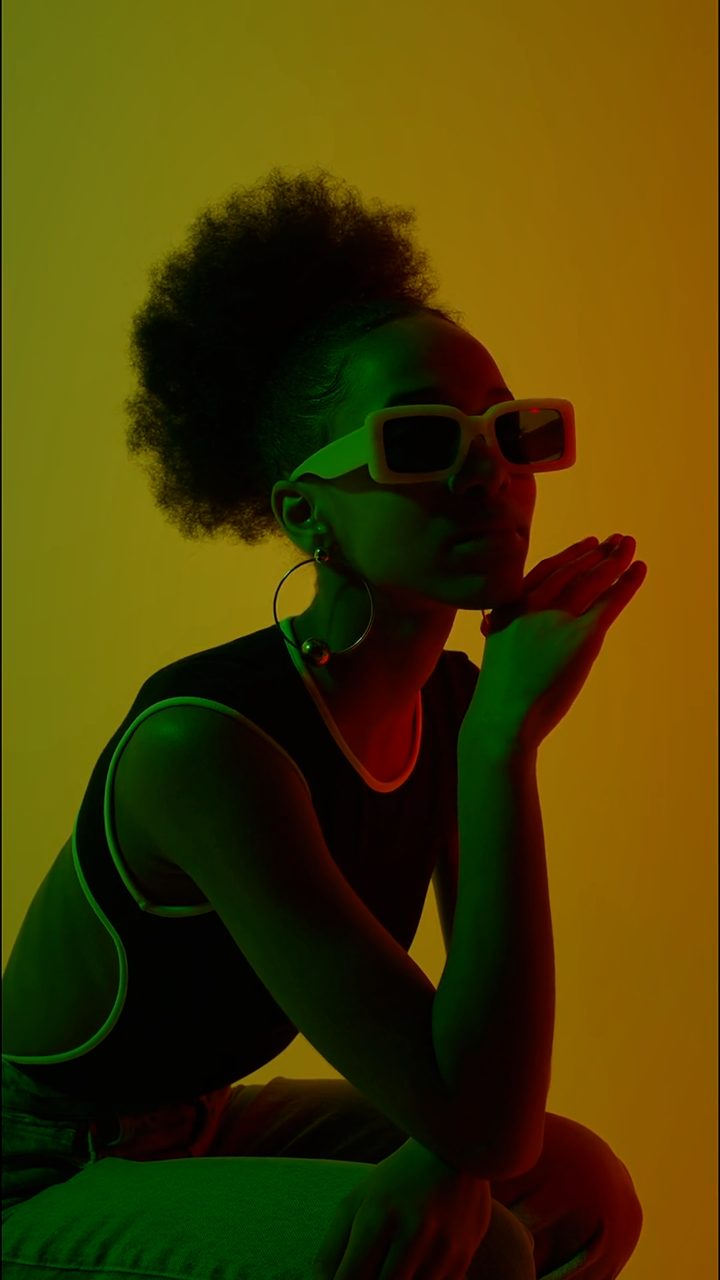 BEFORE
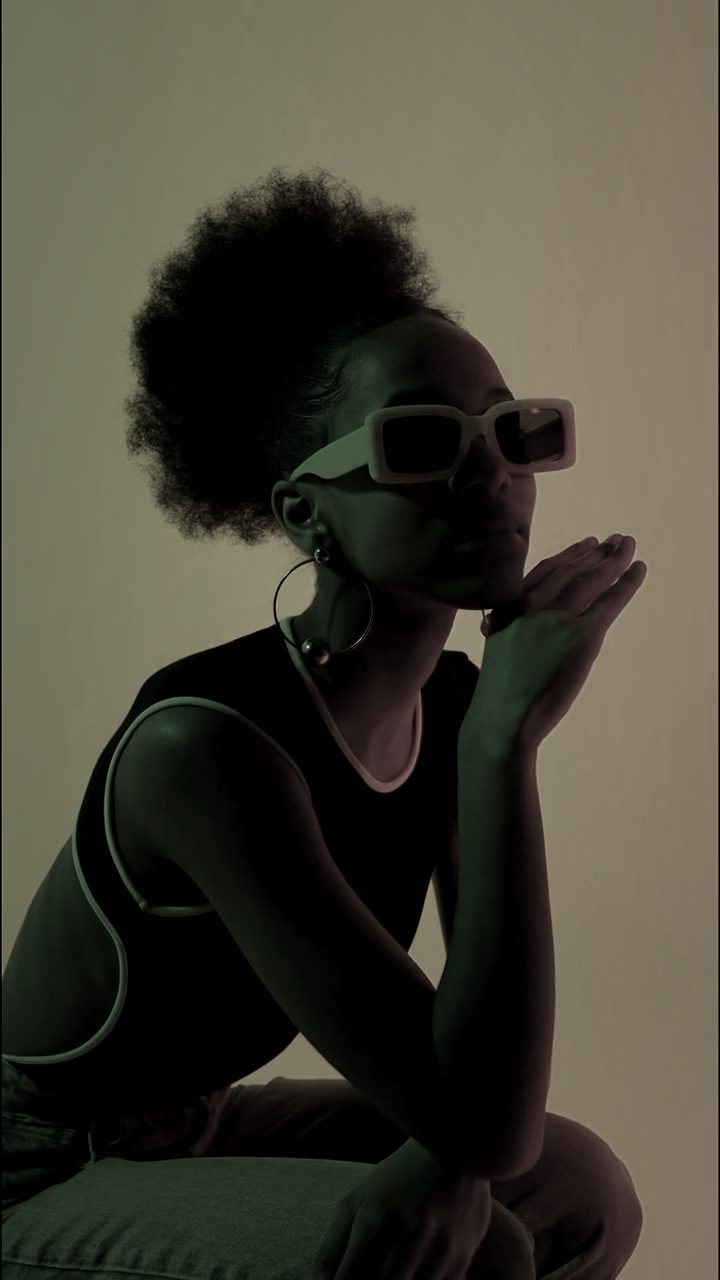 AFTER
AFTERWhat "glitching a photo" actually means
A glitched photo takes a clean image and adds the visual artifacts of broken signals: color channels that drift apart, rows of pixels that smear sideways, horizontal scanlines, and a layer of analog noise. None of it damages your original file. You are compositing effects on top of the image and exporting a new still, so you can try a dozen looks without losing anything.
The effects that matter most for photos are RGB split, pixel sorting, scanlines, and noise. Used together in small amounts they read as a convincing corruption; pushed hard, they turn a photo into something abstract and poster-like.
Glitch a photo in six steps
- Open the editor. It loads in the browser — no account, no install.
- Load Image. Point it at any photo on your device. The file stays local; it is never sent anywhere.
- Pick a preset. The preset menu gives you a finished glitch look in one click, which is the fastest way to see what the effects do.
- Adjust the effects. Dial in RGB split for that red/blue ghosting, add pixel sort to smear bright regions into streaks, layer scanlines for a CRT feel, and sprinkle noise to tie it together. Small moves usually look better than maxed-out sliders.
- Optionally mask one area. Use masking to keep a face or a logo clean while the background falls apart, or invert it so only the subject glitches.
- Save Frame (PNG). This exports the current still as a glitched PNG you can download and use anywhere.
Getting a look you actually want
If you are aiming for a subtle, believable glitch, start with RGB split alone and nudge it just far enough that the edges shimmer. Add scanlines next, then a touch of noise. Save pixel sorting for last, since it is the most aggressive effect and can quickly overwhelm the rest.
For a bolder, graphic result, push pixel sorting until bright areas bleed into long vertical or horizontal bands, then crank RGB split so the color separation becomes part of the composition. This is the direction that reads well small, which matters for thumbnails and avatars.
Where a glitched photo earns its keep
- Cover art. A glitched still makes an eye-catching single or album cover — see our notes on glitch album cover art for framing and text tips.
- Thumbnails. A slightly broken image stands out in a grid of clean ones, which helps click-through on video and blog thumbnails.
- Avatars. Run the effect over a portrait for a profile picture with a distinct, digital edge.
- Posters and banners. Bigger canvases give pixel sorting room to stretch into dramatic streaks.
Why do it in the browser
Everything runs locally on your machine. Your photo is never uploaded, so there is no waiting on an upload bar and nothing sitting on someone else's server. The export is a plain PNG with so it is ready to publish as-is. Because it is free and instant, you can iterate — glitch, save, tweak, save again — until the frame is right.
If you would rather see the effects in motion first, the same tools apply to clips too; our overview of the glitch effect online walks through the video side. But for a single strong image, Load Image and Save Frame are all you need.
Is there an online version for glitching photos?
Yes, you can edit and distort images directly in your browser using the Glitchest web app without installing desktop software, plugins, or command-line scripts. Everything operates entirely on your device, meaning your images stay private and never upload to an external server.
The online editor replaces manual file corruption with immediate visual feedback and fine-grained controls:
- Quick presets: Click preset chips to instantly apply VHS artifacts, scanlines, or RGB displacement.
- Custom parameters: Adjust the intensity of each layer using 0-100 knobs and arrange timeline effect boxes with fade handles to blend styles.
- Direct downloads: Click Save Frame (PNG) to export your glitched photo, or use Export (MP4) if you want an animated loop.
Because there are no software dependencies or sign-up steps, you can open the app, layer your effects, and download high-resolution output immediately.
The exact settings
Start from the Duotone preset, then set:
| Target Color | 55 |
| Color Boost | 58 |
| Contrast | 56 |
| Grayscale | 60 |
Everything else stays at its default — tweak it, then copy your own look as JSON or a link from inside the editor to share it.
Try it now — add this look to your own clip, free and in your browser.
Open the editor →FAQ
Can I glitch a photo, not just video?
Yes. Load an image, apply effects, and use Save Frame to export a glitched PNG.
Is glitching a photo free?
Yes — glitching a photo and saving the full-resolution PNG is free, and the image never leaves your device.
What is a glitched photo good for?
Cover art, thumbnails, avatars and posters.
Is there an online version of Glitchest?
Yes, Glitchest runs entirely online in your web browser with no downloads or installation required. You can start editing your photos and videos instantly at /app/ without creating an account.