Alien-Skin Surreal Look: Channel Swap & Hue Shift
Transforming natural human portraits into otherworldly, extraterrestrial entities is a classic sci-fi grading technique. By combining an aggressive channel swap with an offset hue shift, warm melanin and organic red-spectrum tones instantly invert into eerie bioluminescent cyans, toxic greens, and deep ultraviolet shades.
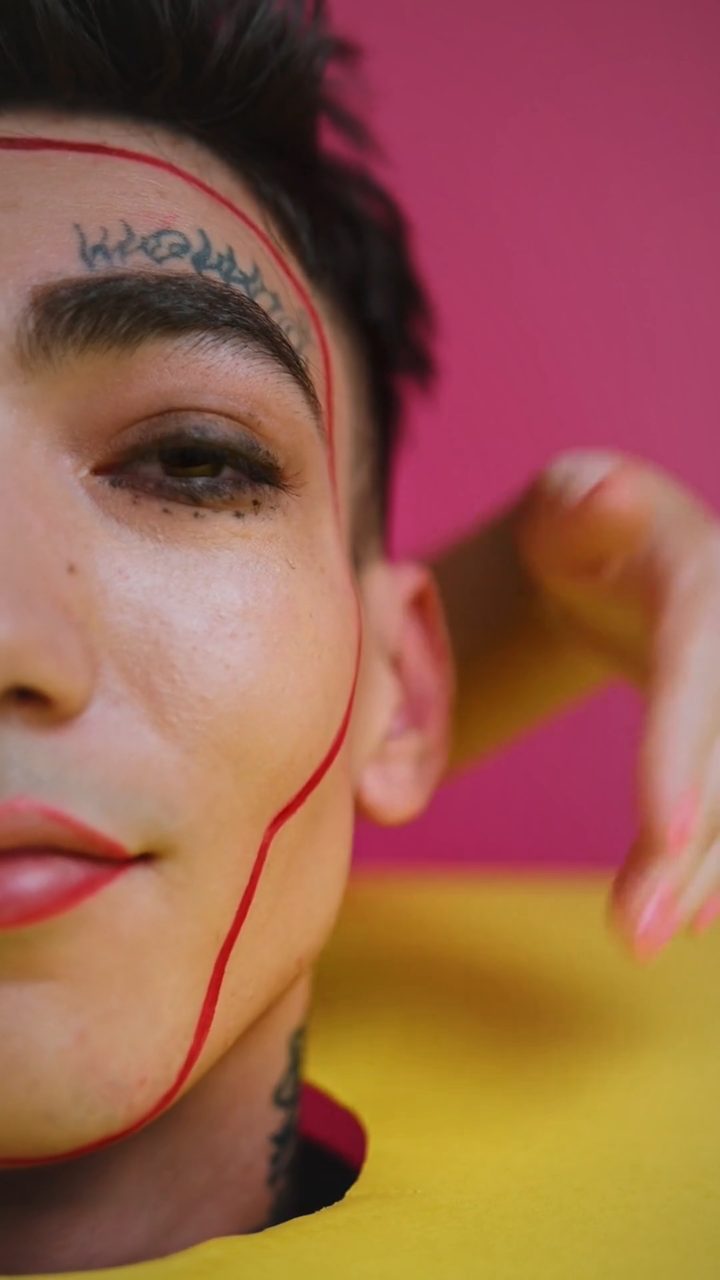 BEFORE
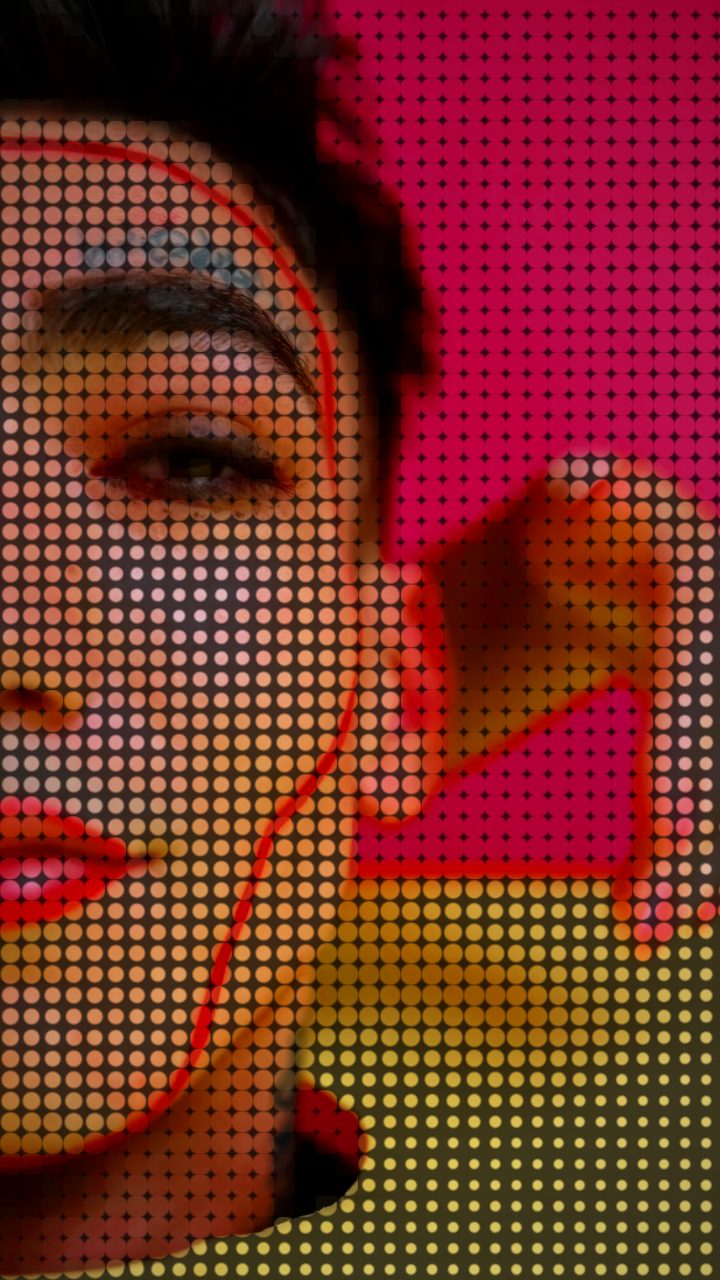 AFTER
AFTERThe Two Paths: Desktop Compositing vs. Real-Time Effect Boxes
Achieving an alien-skin look depends heavily on your production stage, turnaround time, and software setup. Editorial teams generally split between two workflows: heavyweight desktop compositing and instant in-browser styling.
The Manual Desktop Approach (After Effects / DaVinci Resolve)
In traditional desktop post-production suites like Adobe After Effects or DaVinci Resolve, creating an extraterrestrial skin grade is a deliberate, multi-step process. In After Effects, editors frequently stack the Shift Channels or Channel Combiner effects across duplicate adjustment layers, manually remapping the Red source to Green or Blue, followed by a Colorama or Hue/Saturation wheel adjustment. In DaVinci Resolve's Color page, colorists deploy Splitter/Combiner nodes or use the Color Warper to pull warm skin tones across the vector scope.
This method gives incredible manual control over isolated keys and tracker splines, which is essential for feature film VFX. However, it requires significant project setup, local GPU rendering overhead, and a licensed desktop install for simple visual treatments.
The Glitchest Approach (Fast, Zero-Install Browser Processing)
When you need rapid concept art, stylized music video cuts, or social media teasers, building complex node graphs can slow down creative exploration. In the editor at Glitchest, color transforms run client-side using WebCodecs directly in your browser without requiring an account or file uploads. Rather than building matrix channel splits from scratch, you drop modular effect boxes onto timeline lanes, tweak procedural parameters, and preview playback instantly.
Why the Comic Preset is the Ideal Foundation
While shifting color channels remaps pigments, realistic alien skin also needs unnatural texture. Organic skin is soft, with subtle subsurface scattering; extraterrestrial skin often looks synthetic, scaly, or hyper-stylized. This is why the Comic preset serves as the premier starting baseline for this look.
The Comic preset re-architects the underlying image geometry through several key mechanisms:
- Halftone (dots) & Dot Size: Instead of flat digital noise, halftone clustering introduces a micro-pattern reminiscent of amphibious scales or printed graphic novels. Nudge the Dot Size downward for fine, reptilian skin pores, or increase it for graphic-novel posterization.
- Dot Flatten: This knob compresses midtone gradients into hard, graphic boundaries, stripping away the soft gradients typical of mammalian skin.
- Contrast & Color Boost: Cranking contrast pushes deep shadows into sharp relief, giving facial contours a sculpted, predatory edge while magnifying the impact of downstream color shifts.
Once the Comic texture is active, pairing it with color manipulations yields a distinct sci-fi aesthetic far faster than building halftone shaders manually in a desktop NLE.
How to Build the Alien-Skin Look in Glitchest
- Import Your Media: Open the editor and load your portrait video clip or still frame. Everything renders locally on your hardware.
- Apply the Comic Base: Select the Comic preset to lay down the halftone structure and punchy baseline contrast. Adjust the Dot Flatten and Halftone knobs until facial features take on a structured, textured appearance.
- Dial in the Color Inversion: Activate channel swapping and shift the hue dial. As the red channel values rotate into green and violet wavelengths, warm highlights flip to radioactive chartreuse or icy turquoise. Check our guide on rapid channel swap techniques for additional dynamic timing tips.
- Mask the Subject (Optional): If you want the background to remain normal while the subject's face morphs into an alien entity, add an Ellipse or Rectangle mask to your effect box. Position the mask over the face and feather the boundary for a smooth blend.
- Animate with Effect Boxes: Rather than fiddling with keyframe curves, drop a short effect box onto a timeline lane for an abrupt bio-scan glitch hit. To make the subject gradually mutate, extend the effect box across the clip and increase its fade-in duration. You can also combine this with hue shifting and color boosting on an overlapping lane to dial in fluorescent skin highlights.
- Export: Render an MP4 directly via WebCodecs for video edits, or tap Save Frame to pull a lossless PNG still.
When to Choose Each Workflow
If you are delivering a master composite requiring intricate rotoscoping across hundreds of moving VFX plates, stick with After Effects or DaVinci Resolve. But if your goal is immediate creative experimentation, quick social turnarounds, or producing striking cybernetic/alien visuals without opening heavy software, Glitchest gives you the same jarring aesthetic in seconds.
The exact settings
Start from the Comic preset, then set:
| Color Boost | 44 |
| Contrast | 64 |
| Halftone (dots) | 72 |
| Dot Size | 56 |
| Dot Flatten | 44 |
Everything else stays at its default — tweak it, then copy your own look as JSON or a link from inside the editor to share it.
Try it now — add this look to your own clip, free and in your browser.
Open the editor →FAQ
How does swapping color channels turn human skin into an alien palette?
By routing red channel luminance into the blue or green channels, natural skin tones immediately flip into bioluminescent greens, vibrant cyans, and surreal violets without rotoscoping.
Should I isolate the skin with a mask or grade the entire frame?
Shifting the entire frame creates an otherworldly environmental atmosphere, but you can also use an ellipse mask on an effect box lane to restrict the chromatic inversion strictly to a subject's face.
Why start with the Comic preset for extraterrestrial skin?
The Comic preset injects high-contrast halftone dots and structural flattening, transforming smooth human pores into stylized, scaly textures before you shift the color channels.