How to Make a VHS Birthday or Home-Video Look
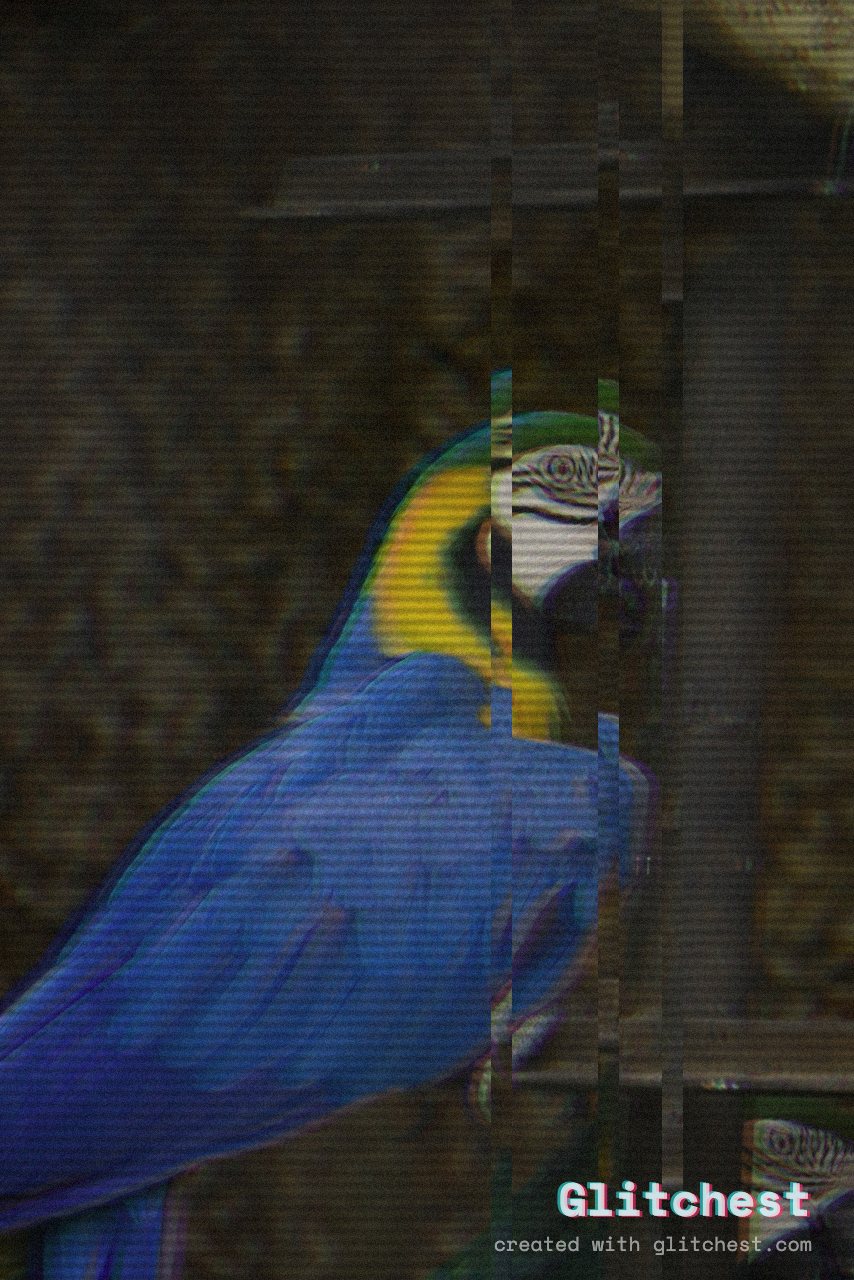
Recreating the warm, nostalgic atmosphere of a 1990s home tape requires more than just dialing up chromatic aberration—it demands balancing tracking errors, magnetic color bleeding, and soft vintage contrast. Whether you are editing a throwback birthday reel or styling a music video, deciding between complex After Effects plugin chains and instant browser tools determines how quickly you reach your final export.
Manual Compositing vs. In-Browser Rendering
When aiming for an authentic home-video look, creators generally choose between two distinct workflows: building analog signal chains manually inside desktop NLEs like Adobe After Effects, or utilizing hardware-accelerated WebGL processing in modern web tools.
The Manual After Effects Approach
Building a VHS signal from scratch requires stacking multiple adjustment layers: gaussian blur for tape softness, high-pass filters for edge sharpening, custom noise textures for tape grain, and manual color channel shifting for RGB split effects. While this offers detailed control over every scanline, it introduces software costs, a steep learning curve, and lengthy render times for simple social media edits.
The Glitchest WebCodecs Workflow
Browser-based tools handle complex shader passes directly on your graphics processing unit without requiring asset uploads or cloud queues. By rendering frames client-side, you achieve real-time previews for color drift, scanlines, and magnetic distortion. If you want to explore general retro styling techniques, check out our guide on how to add a VHS effect to video without account sign-ups.
Comparing Nostalgic Presets: VHS vs. Y2K vs. Signal Jam
Achieving the right home-video look depends heavily on the specific decade and camera technology you want to emulate. Choosing the right baseline preset saves hours of manual parameter tweaks:
- VHS Preset: Best for classic 80s and 90s family birthday parties. Delivers soft color bleeding, mild tracking hum along the bottom frame, and gentle warmth in the midtones.
- Y2K Preset: Ideal for late-90s and early-2000s mini-DV camcorder aesthetics. Features sharper edge contrast, blown-out digital highlights, and cooler blue tinting.
- Signal Jam / Dead Channel: Best for heavily damaged tapes or dramatic transitions. Adds aggressive static dropout, horizontal tearing lines, and screen jitter.
Step-by-Step: Crafting a VHS Birthday Look in Glitchest
Follow these steps to convert clean modern video clips into a warm vintage home tape directly inside your browser:
- Import Your Media: Open the editor and drop your MP4 clip or image frame onto the canvas. Your file remains entirely local on your device.
- Apply the Base Preset: Navigate to the preset drawer and select VHS for a soft analog glow or Y2K for early digital camcorder saturation.
- Tune the Time Machine Dial: Rotate the Time Machine film-look dial to pull down digital sharpness, shift color warmth toward vintage tungsten tones, and soften dark shadows.
- Animate Tracking Errors with Effect Boxes: Add effect boxes on the timeline below the canvas. Drop a short box with little or no fade at specific timestamps—such as key moments during a birthday cake candle blow-out—so the glitch snaps on and off to simulate mechanical tape tracking errors.
- Isolate Highlights with Masking: Use a subtle rectangle or ellipse mask if you want to restrict severe magnetic distortion to the edges of the frame while keeping faces clear.
- Export Fast: Render a high-bitrate MP4 powered by WebCodecs, or capture instant hi-res stills using the Save Frame feature.
When to Use Desktop NLEs vs. Free Web Tools
Choosing the right tool comes down to production scale and turn-around speed. For multi-layer cinematic film masters that require 3D spatial compositing, heavy desktop plugins remain useful. However, for fast turnaround social media edits, music video clips, and nostalgic birthday montages, browser-based GPU rendering offers maximum fidelity with zero software overhead.
Try it now — add this look to your own clip, free and in your browser.
Open the editor →FAQ
What makes a video look like a 90s VHS home tape?
An authentic VHS home-video look relies on softened image resolution, magnetic color bleeding, lowered contrast, subtle scanlines, and occasional mechanical tracking distortion.
Can I apply a retro home-video filter without uploading my private clips?
Yes, Glitchest processes all video effects directly inside your web browser using WebGL and WebCodecs, meaning your private footage never leaves your machine.
How do I create a worn-out tape glitch on specific moments in my clip?
You can use effect boxes on Glitchest's timeline to place glitches at exact moments, dropping a short box with little or no fade during key moments like birthday candle blow-outs so the tracking distortion snaps on hard.