Datamosh Bloom Glitch Look Recipe
Datamosh Bloom blends liquifying pixel trails with vibrant chromatic fringing to create a painterly, melting digital artifact. It turns high-contrast motion into vivid visual smears that bloom directly across your video cuts and image transitions.
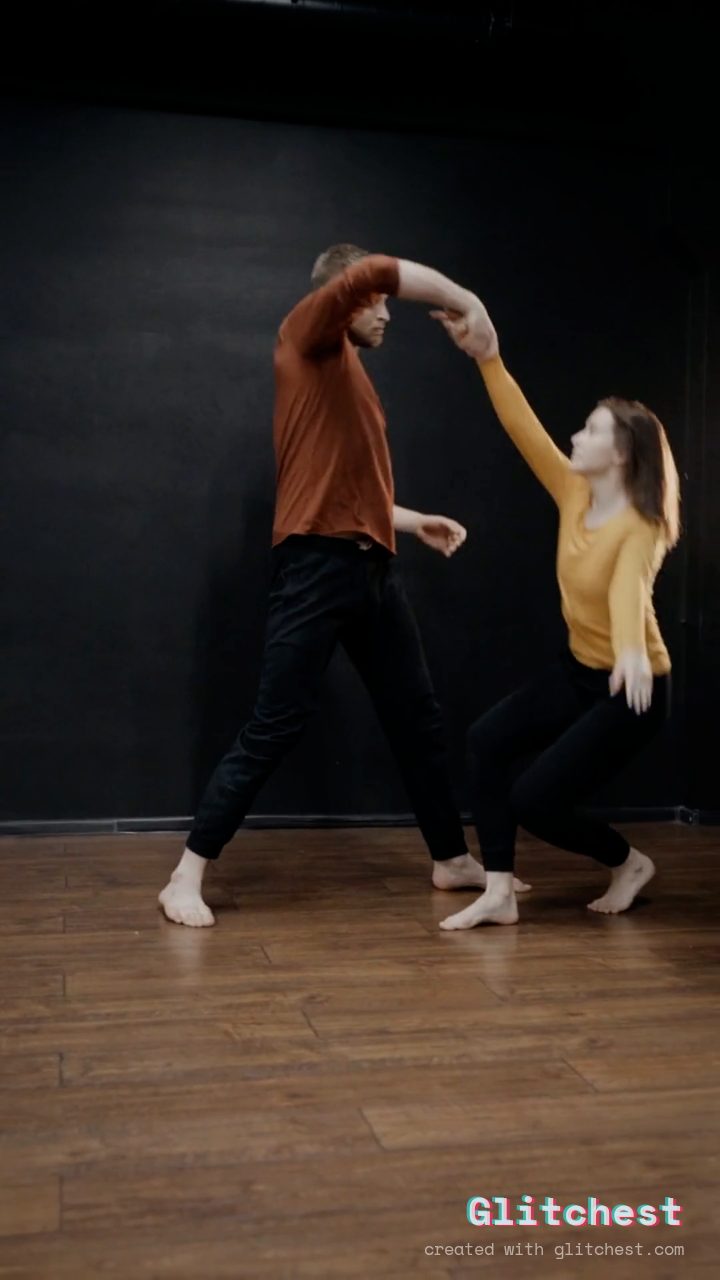 BEFORE
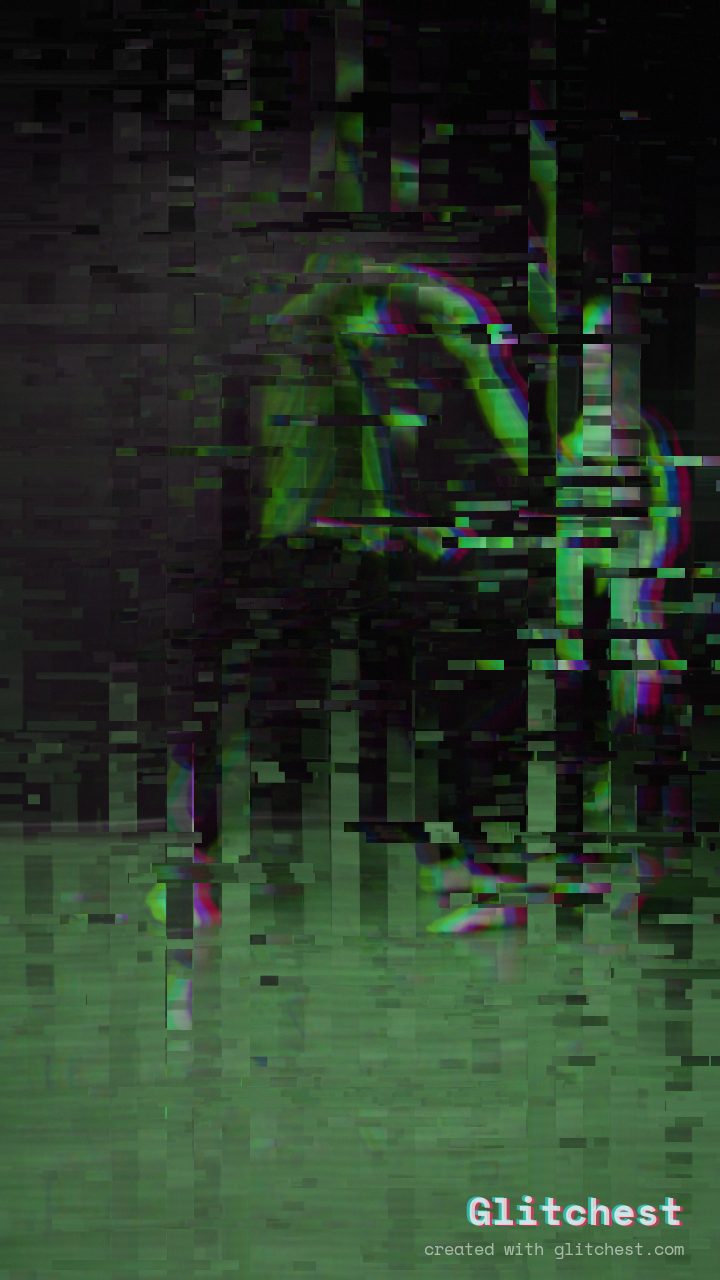 AFTER
AFTERWhy this look works
Behind the Recipe
The core energy of this look comes from heavy pixel trailing working in tandem with vibrant color separation. High trailing settings force previous frame details to melt forward into incoming motion, while mid-sized pixel blocks give the artifacting a structured, digital texture without swallowing the underlying image entirely.
To turn a standard compression glitch into a true bloom, elevated chromatic splitting and subtle hue shifts work alongside gentle vertical jitter and scanline texture. The chromatic fringe acts like a prism along the leading edge of moving pixels, making every motion hit feel kinetic and luminous.
The recipe
Start from the Datamosh preset, then set:
| Strength (master) | 34 |
| Glitch Rate | 20 |
| Glitch Width | 40 |
| Block Size | 44 |
| Chaos | 22 |
| Datamosh (trail) | 72 |
| Horizontal Wave | 14 |
| Vertical Wave | 10 |
| Vertical Shift | 24 |
| Vertical Shake | 18 |
| RGB Split | 54 |
| Hue Shift | 26 |
| Noise | 10 |
| Scanlines | 15 |
| Flicker | 12 |
Everything else stays at its default — tweak it, then copy your own look as JSON or a link from inside the editor to share it.
When to use it
Datamosh Bloom shines best when paired with fast cuts, high-contrast imagery, and rhythmic pacing. If you want to understand how traditional compression artifacts differ from browser-based simulations, check out our guide on What Is Datamosh — and How to Fake It Without Corrupting Files.
- Beat-Synced Music Video Transitions: Drop this effect on heavy drum hits or bass drops to melt two consecutive clips together.
- Edgy Title & Logo Reveals: Let text bleed onto the screen out of a colorful, liquified visual smear.
- Stylized Social Media Stings: Grab immediate attention on short-form feeds with a flash of blooming color glitches.
Want a tighter, more controlled distortion? Open the editor and dial back the block size or vertical shake controls to keep high-frequency detail intact while retaining the glowing trails.
Try it now — add this look to your own clip, free and in your browser.
Open the editor →FAQ
Do I need to render frame-by-frame video files to create this look?
No, Glitchest simulates compression trailing and color distortion directly in your browser without requiring complex video rendering or frame deleting.
How do I make the blooming motion trail more aggressive?
Increase the trail control slider or boost the block size parameter to push larger pixel chunks across the screen during high-contrast movement.
Is this effect free to export?
Yes — editing and export are free with no account signup and no file uploads; video exports have no watermark.